Choose a source image
Click Choose an image and upload a PNG, JPG, JPEG, or WEBP. A clear, well-lit image with one main subject gives the strongest mystery result.

Follow the real screens below. You can create a printable mystery color-by-number project, open a free page from the library, color every matching cell, and export your finished artwork.
Turn a clear photo or illustration into a numbered mystery page, a completed answer, an exact palette, and files ready for online coloring.
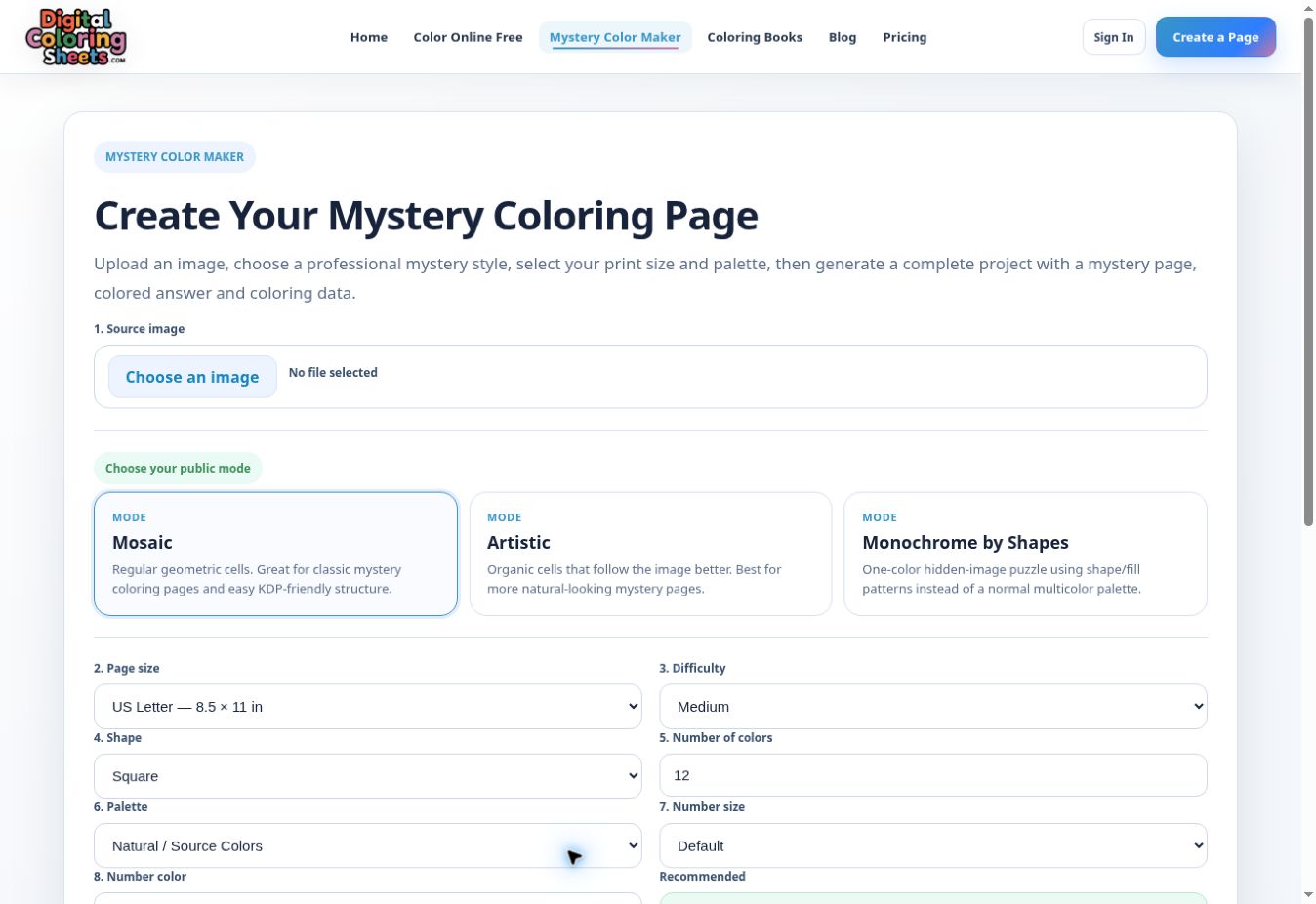
Click Choose an image and upload a PNG, JPG, JPEG, or WEBP. A clear, well-lit image with one main subject gives the strongest mystery result.
Mosaic makes regular geometric cells. Artistic uses organic cells that follow the image. Monochrome by Shapes creates a one-color hidden-image puzzle.
Select the final print format: US Letter, square, 8 × 10, 6 × 9, large square, workbook, or A4.
Easy uses larger, simpler areas. Medium balances detail and readability. Detailed creates more cells for an advanced page.
For Mosaic or Monochrome, choose a cell shape. For a multicolor project, select the number of colors and the palette style.
Choose the printed number size and color. Use larger numbers when the page is intended for children, seniors, or small-format printing.
Use a single-creation pass or sign in and use one account credit. A credit is charged only after the complete project is generated successfully.
When generation finishes, download the ZIP. It contains the mystery page, colored answer, official palette, and coloring data. If Color Your Project is available, open it directly in the online colorer.
Open a page from the free library, select a numbered color, fill matching cells manually or automatically, and export the finished artwork.
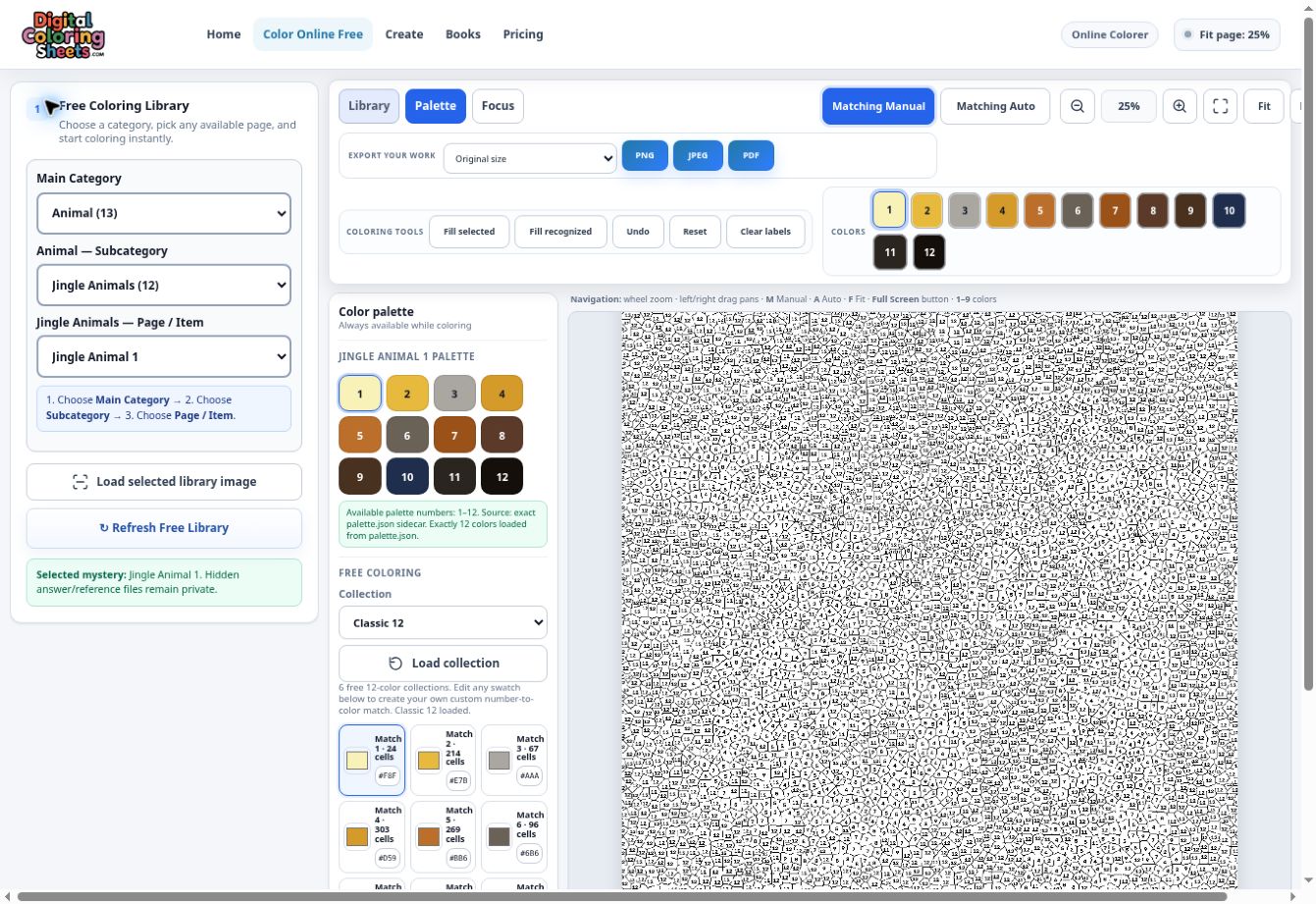
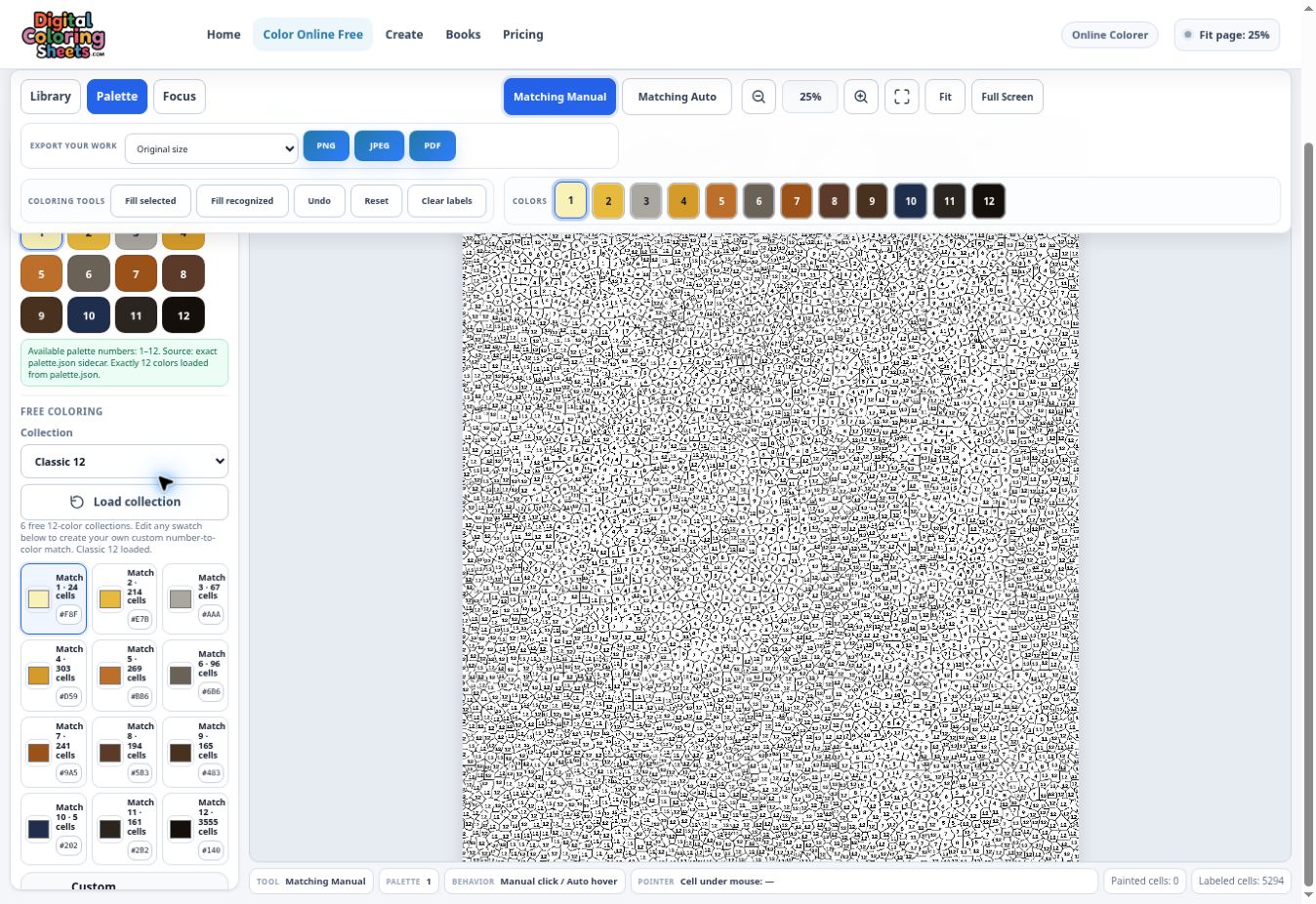
Open Library. Choose a Main Category, a Subcategory, and a Page / Item, then click Load selected library image.
Click a numbered color in the top color strip or the official palette. The selected number tells the colorer which matching cells to fill.
Matching Manual fills a matching cell when you click it. Matching Auto fills matching cells as you move over them.
Work through the palette one number at a time. The canvas keeps every completed cell while you change colors.
Use the mouse wheel to zoom and drag to pan. Fit shows the whole page, while Focus and Full Screen give you more coloring space.
Use Undo for the last action or Reset to start again. Fill selected and Fill recognized are faster options when you want automatic progress.
Choose Original size or a print size, then export as PNG, JPEG, or PDF. PNG is best for crisp digital artwork; PDF is convenient for printing.

